> For the complete documentation index, see [llms.txt](https://docs.talus.network/llms.txt). Markdown versions of documentation pages are available by appending `.md` to page URLs; this page is available as [Markdown](https://docs.talus.network/talus-docs-v2.1.0/guides/vision-explorer/home-dashboard-profile.md).

# Vision Home, Dashboard, and Profile

{% hint style="info" %}
**Audience:** Anyone wanting the network at a glance, or one address's footprint on it.

**Goal:** Read the three overview surfaces — home, dashboard, profile — and know where each number comes from.
{% endhint %}

### Home

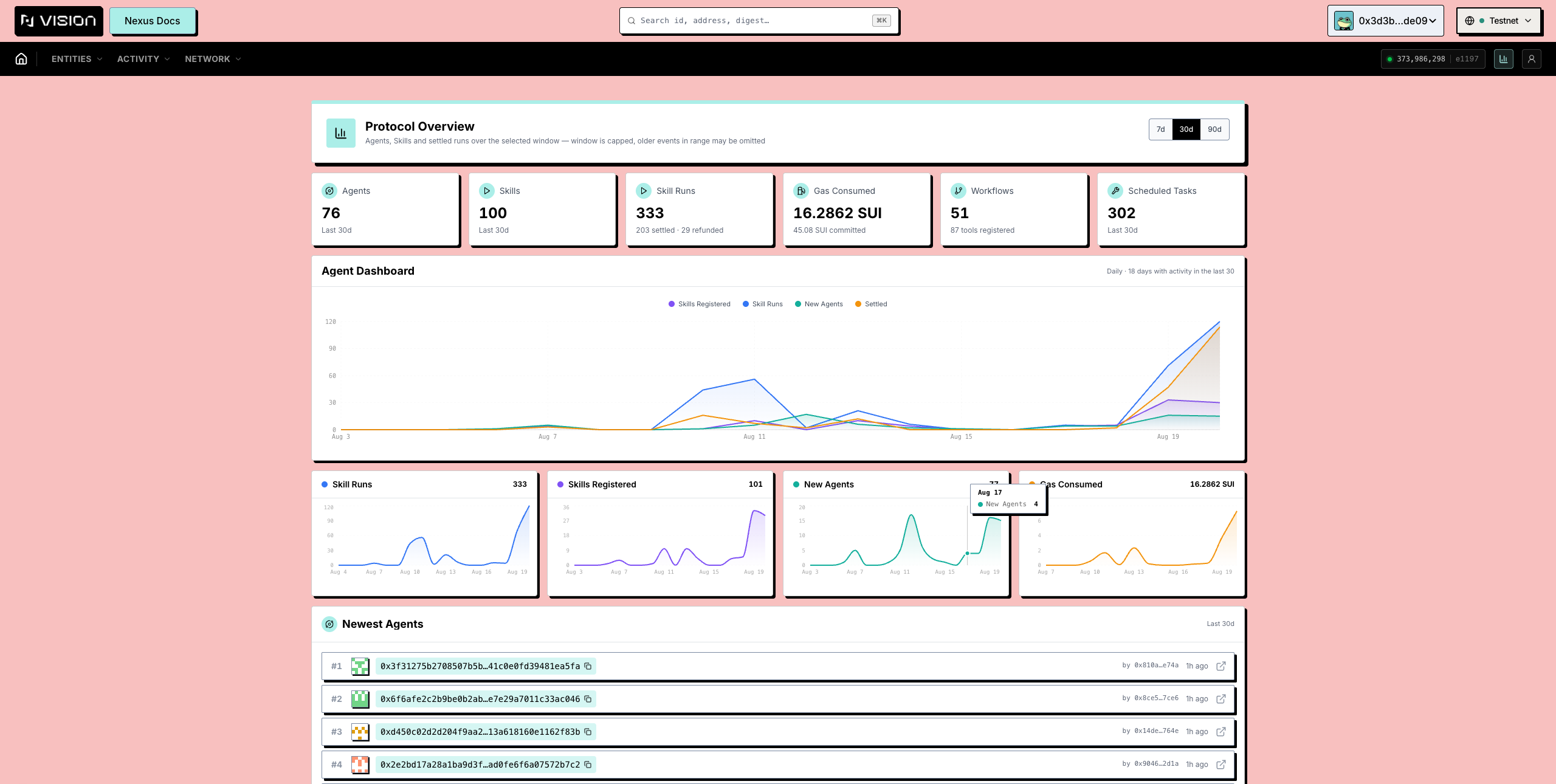
The explorer home (`/explorer`) is what the header logo opens. It shows:

* Three headline counts — **Deployed Agents**, **Skill Executions**, **Registered Skills**.
* **Newest Agents**, each linking to its page.
* **Recent Activity** — the latest protocol events across every family, newest first, with new entries flashing in as they arrive. Each entry names its kind (a run funded, finalized, refunded; a task created, paused, canceled, closed; an occurrence scheduled, consumed, missed; a new workflow; a payment shortfall) and links to the thing it happened to.

<figure><img src="https://3395888576-files.gitbook.io/~/files/v0/b/gitbook-x-prod.appspot.com/o/spaces%2FLPrUNT846cHDCVQcRD3f%2Fuploads%2Fgit-blob-3dfef505eba4f2bcef359c979351e66a1279fa9b%2Fexplorer-home.png?alt=media" alt="The Explorer home with headline counts, newest agents and the activity feed"><figcaption><p>The Explorer home: headline counts, newest agents, and the live activity feed.</p></figcaption></figure>

#### Dashboard

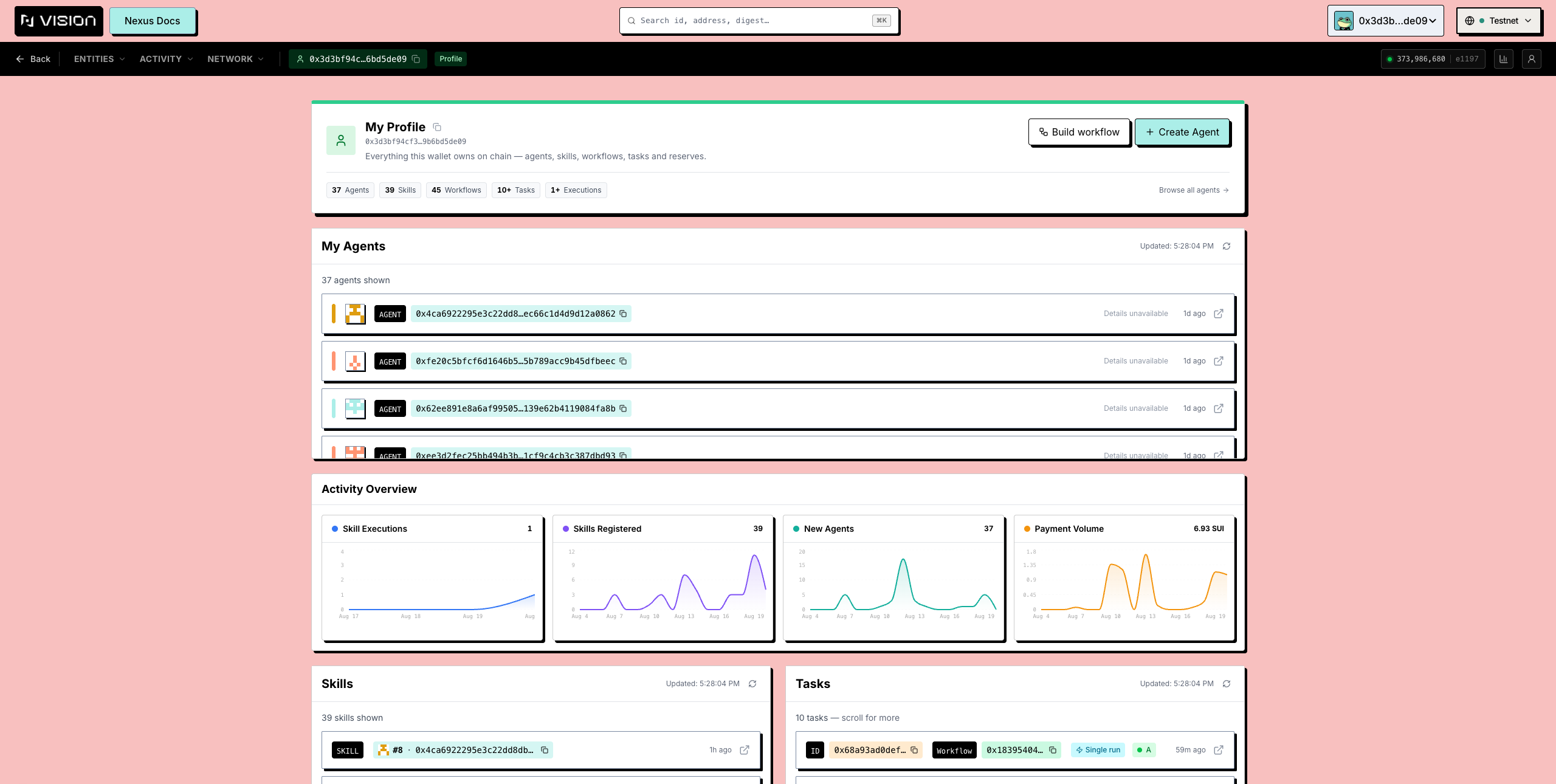
The **Dashboard** (chart icon beside the nav) is the network over a window you choose — **7**, **30**, or **90** days:

* **Protocol Overview** — counts of **Agents**, **Skills**, **Workflows**, **Scheduled Tasks**, **Skill Runs**, and **Gas Consumed** in the window.
* **Agent Dashboard** — daily charts: **New Agents**, **Skills Registered**, **Skill Executions** / **Skill Runs**, **Payment Volume**, **Gas Consumed**. The note under the heading says how many days in the window actually had activity, so a sparse chart is not mistaken for a flat one.
* **Newest Agents** and **Newest Skills** in the window.
* **Busiest Agents** — by runs.
* **Top Invokers** — addresses ranked by user-funded runs.
* **Recent Activity** — a longer feed than the home's.

The figures are derived from event streams scanned over the window, not from a single counter on chain; the window note is the honest statement of what was scanned.

<figure><img src="https://3395888576-files.gitbook.io/~/files/v0/b/gitbook-x-prod.appspot.com/o/spaces%2FLPrUNT846cHDCVQcRD3f%2Fuploads%2Fgit-blob-5dc1c18ac4738d6844e3f2bece0ca6023c96f8ec%2Fexplorer-dashboard.png?alt=media" alt="The Dashboard with protocol overview and daily charts"><figcaption><p>The Dashboard over a 7, 30, or 90 day window: protocol overview, daily charts, and leaderboards.</p></figcaption></figure>

#### Profile

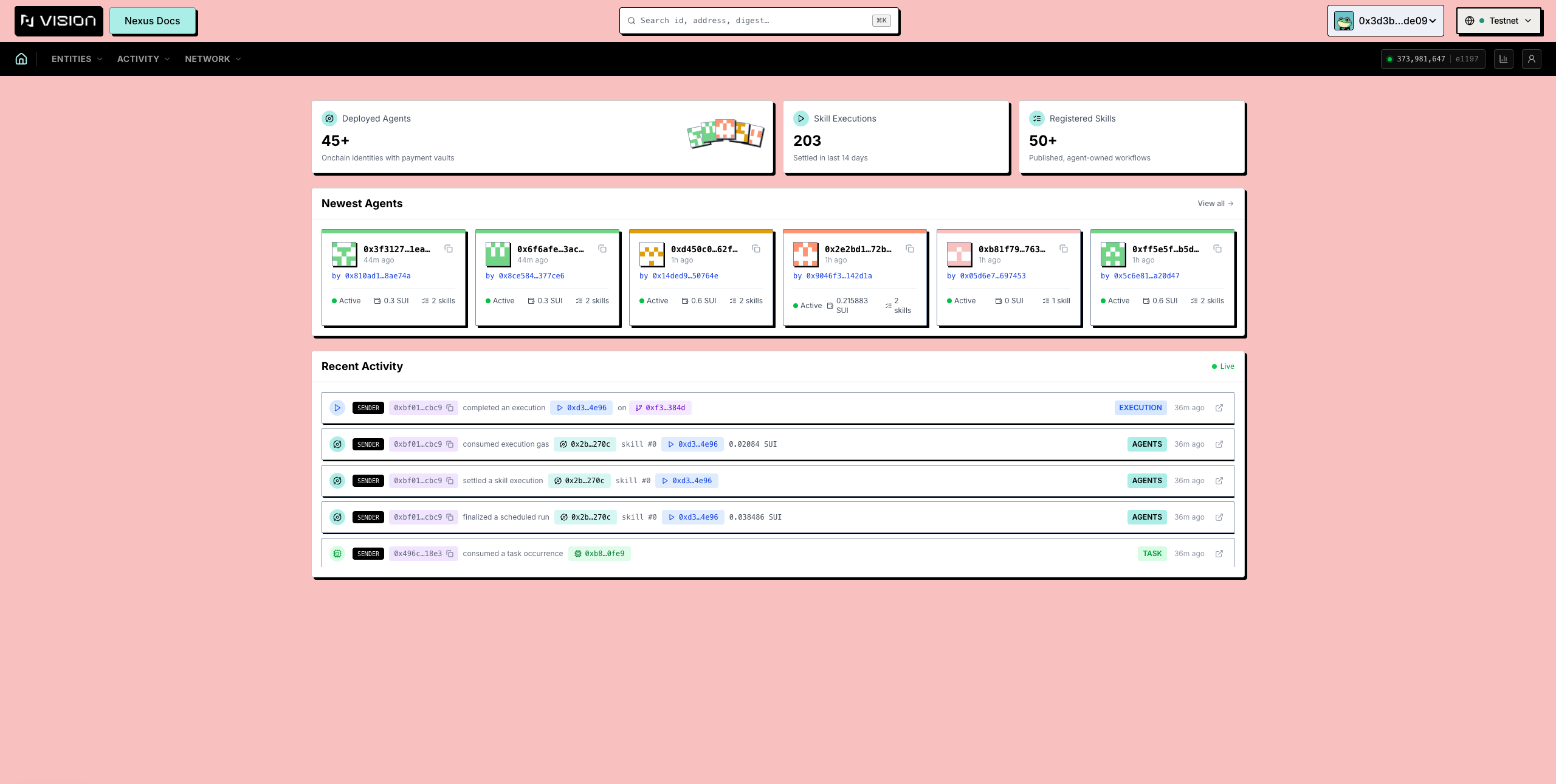
The **Profile** (`/explorer/profile/<address>`) is everything one address owns or did. The person icon beside the nav opens **My Profile** for the connected wallet; any creator address on any row opens that address's.

The hero shows counts of **Agents**, **Skills**, **Workflows**, **Tasks**, and **Executions**, then:

* **My Agents** / **Agents** — the agents the address created, each linking to its page.
* **Activity Overview** — the address's **Skills**, **Tasks**, **Workflows**, and **Executions** as lists.
* **Payment Reserves** — every address-funded task payment reserve whose recorded user/refund recipient is this address, with its remaining funds and a link to the task it backs. This answers "which of my address-funded schedules have run dry": a reserve that cannot fund the next occurrence is flagged, but profile inclusion is not proof that this address supplied the original coin or controls the Task. Follow the Task/controller record and funding transaction when the UI exposes them. For Agent-funded schedules, inspect the Agent, its payment vault, and the Task page to identify the funding source and remaining capacity.
* **Registered Tools** — the Tools the address owns, with their price and earnings; owners use the wallet-authorized CLI or SDK paths in [Tool Development](/talus-docs-v2.1.0/guides/tool-development.md) for registration and updates.

The account dropdown's **My Agents** and the profile icon both land here; there is no separate header button for agents.

<figure><img src="https://3395888576-files.gitbook.io/~/files/v0/b/gitbook-x-prod.appspot.com/o/spaces%2FLPrUNT846cHDCVQcRD3f%2Fuploads%2Fgit-blob-ac3bfc2b77202857adf733a31a8c45adfdf0507c%2Fexplorer-profile.png?alt=media" alt="A profile page with entity counts and payment reserves"><figcaption><p>A profile: what one address owns, its activity, and the payment reserves behind its schedules.</p></figcaption></figure>


---

# Agent Instructions
This documentation is published with GitBook. GitBook is the documentation platform designed so that both humans and AI agents can read, navigate, and reason over technical content effectively. Learn more at gitbook.com.

## Querying This Documentation
If you need additional information that is not directly available in this page, you can query the documentation dynamically by asking a question.

Perform an HTTP GET request on the following URL with the `ask` and `goal` query parameters:

```
GET https://docs.talus.network/talus-docs-v2.1.0/guides/vision-explorer/home-dashboard-profile.md?ask=<question>&goal=<user_goal>
```

`ask` is the immediate question: it should be specific, self-contained, and written in natural language.
`goal` is what the user is ultimately trying to achieve, the reason they need the answer. Sharing it helps GitBook give you a better, more relevant answer. A goal is most helpful when it describes the outcome the user wants rather than restating the question. For example, with `ask=how do I create an API token`, a goal like `build a script that syncs our docs to a CMS` lets GitBook tailor the answer to that use case.

The response will contain a direct answer to the question and relevant excerpts and sources from the documentation.

Use this mechanism when the answer is not explicitly present in the current page, you need clarification or additional context, or you want to retrieve related documentation sections.